Showing posts with label SharePoint. Show all posts

Saturday, February 13, 2010

Play Streaming Videos on SharePoint

As we all know that SharePoint 2007 can not play streaming Videos out-of-the box so i decided to find out a way by which you can stream videos on your MOSS 2007 site so i turned to my best friend... Google. I found a little material on the web where i came to know that to play streaming videos on the web you need a Streaming Server. So i decided to integrate SharePoint with a streaming Server. To play streaming videos Microsoft provides something called as Windows Media Services.Windows Media Services (WMS) is a streaming media server from Microsoft  that allows an administrator to generate streaming media (audio/video). It is an update for Windows Server operating system. You can install it on your Windows Server 2003/2008 as a windows server role and then your server will be a Streaming Server.

Ok so after this introduction to Windows Media Services (WMS) let us move ahead and look at the steps to integrate SharePoint with WMS.

Once Windows Media Services is Installed open the Windows Media Services Manager.
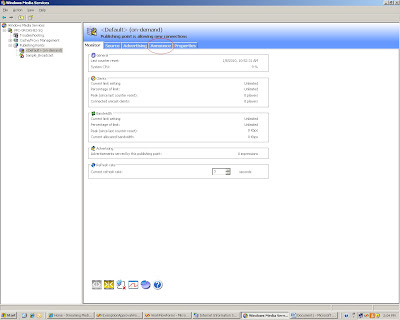
In the WMS Manager click the tab called Announce (using this you can create a Video Stream)

The media stream that WMS creates uses mms protocol the link that it will generate can be put directly in Windows Media Player to play the video stream but you can not store this link in SharePoint because the Link List in SharePoint only takes http protocol so we will run the Unicast Announcement Wizard which will create asx file which supports http protocol.

Clicking on the "Run Unicast Announcement Wizard" will start the Unicast Announcement Wizard. Click on Next

On the "On-Demand Directory" window click the browse button and select a video that you want to stream then click on Next


On the Access the Content Screen click on Next

On the Save Announcement Option screen select the path where you want to save the announcement. I decided to save the asx file on an IIS web site so that i can get an hhtp link to that file. So i created a simple IIS website called Media Services and gave its physical path as "C:\Inetpub\wwwroot\Media" and saved the asx file on the same path


On the Edit Announcement Metadata page you add metadata to the asx file and then click Next

On the Complete Announcement Wizard Page click Finish.

Till now we have a Video Stream created but now we need a Video Player web part to play this stream on the SharePoint site.

So the next step is to create Media Player Web part. I created a simple webpart which embeds the Windows Media Player on the SharePoint page and takes the source parameter of the Video dynamically from the query string. The following is the code for the Media Player Web Part.


using System;
using System.Collections.Generic;
using System.Linq;
using System.Text;
using System.Web;
using Microsoft.SharePoint;
using System.Web.UI.WebControls.WebParts;
using System.Web.UI;
namespace MediaPlayerWebPart
{
    public class MediaPlayer : WebPart
    {
        private string videoPath = string.Empty;
        [WebBrowsable(true), Personalizable(true), WebDisplayName("Video Path")]
        public string VideoPath
        {
            get
            {
                return ((this.videoPath == null) ? string.Empty : this.videoPath);
            }
            set
            {
                this.videoPath = value;
            }
        }
        private string width = "192";
        [WebBrowsable(true), Personalizable(true), WebDisplayName("Width")]
        public string Width
        {
            get
            {
                return ((this.width == null) ? string.Empty : this.width);
            }
            set
            {
                this.width = value;
            }
        }
        private string height = "190";
        [WebBrowsable(true), Personalizable(true), WebDisplayName("Height")]
        public string Height
        {
            get
            {
                return ((this.height == null) ? string.Empty : this.height);
            }
            set
            {
                this.height = value;
            }
        }
        protected override void CreateChildControls()
        {
            //if(Page.Request.QueryString["VideoPath"] != null || Page.Request.QueryString["VideoPath"] != string.Empty)
              if (Page.Request.QueryString["VideoPath"] != null)
            {
                videoPath = Page.Request.QueryString["VideoPath"].ToString();
            }
            this.Controls.Add(new LiteralControl("<body><OBJECT ID=\"MediaPlayer\" WIDTH=\"" + width + "\" HEIGHT=\"" + height + "\" CLASSID=\"CLSID:22D6F312-B0F6-11D0-94AB-0080C74C7E95\"STANDBY=\"Loading Windows Media Player components...\" TYPE=\"application/x-oleobject\"><PARAM NAME=\"FileName\" VALUE=\"" + videoPath + "\"><PARAM name=\"autostart\" VALUE=\"true\"> <PARAM name=\"ShowControls\" VALUE=\"true\"><param name=\"ShowStatusBar\" value=\"false\"><PARAM name=\"ShowDisplay\" VALUE=\"false\"><EMBED TYPE=\"application/x-mplayer2\" SRC=\"" + videoPath + "\" NAME=\"MediaPlayer\"WIDTH=\"192\" HEIGHT=\"190\" ShowControls=\"1\" ShowStatusBar=\"0\" ShowDisplay=\"0\" autostart=\"0\"> </EMBED> </OBJECT> </body>");
}


Next.. create a Links List on a SharePoint site and add the link to the asx file that we just created.

Once all this is done add the Media Player Web Part and a List View Web Part showing the list of videos on a SharePoint Web Part Page. For this PoC I added a DataView web part of this Links list which displayed the Name of the Video as a hyperlink to the same page with the url of the Video as the query string so that the Media Player Web Part picks up the source of the Video from the Query string and plays the Video.

So here it is Video Streaming on SharePoint!!!

Now you can play videos from your Streaming Server directly on SharePoint.

Thursday, January 28, 2010

Problem in Uploading Slides To Slide Library in SharePoint 2010

Recently when i was trying to check out the new features of Slide Library in SharePoint 2010 i faced a problem while publishing slides to the Slide Library. here are the steps which i performed

1) Created the Slide Library
2) In the slide library i clicked on Upload -> Publish Slides and it opened PowerPoint on my machine (then i selected a PowerPoint Presentation  to open and after that i seleced a few slides to be published)
3) After selecting the slides when i clicked on Publish button (on the Publish Slides Window) i got the following error

http:// is not accessible. Either this location does not exist or you might not have permission to use this network resource.

so i started googling it out. After searching alot on the net. I found other people facing the same issue. I did not find the solution to this problem but got a hint that this has something to do on the client side.

1st thing that you have to ensure that you have Office Professional PLUS installed on your client machine only then you can Publish your slides to SharePoint Slide Library. I already had Office Proessionl PLUS so this was not the problem. Also if you have this problem then you get a different error saying that "This feature requires Microsoft Office PowerPoint Professional". This message is a bit misleading as you actually require Professional PLUS for this to work.

Anyways comming back to my problem. I found that some of the integration features of Office client Applications and SharePoint work poperly only when you have WebClient service running on the client machine. For example features like
Opening a document library using Windows Explorer
Saving documents directly to ShaerPoint document library from withing Office Client Application.


The Operating Stsyem which i was using was Windows Server 2008 R2 (Standard). So i started searching for this WebClient Service to see if it was running or not. I went to Start->Administrative Tools->Services i browsed through all the services but could not find it. then i realised that  had not installed the Desktop Experience feature on my Server (The WebClient service is installed only when you install the Desktop Experience feature on you Server 2008 machine). So i went ahead and installed the feature. Then i again checked the services and i as expected  i saw the WebClient service so i started the service After that i tried to publish the slides again and it worked like a charm....Problem solved!!

So, as a summary here are the steps which i performe to solve the problem

1) Go to Start->Administrative Tools->Server Manager
2)In Server manager Click on Features and the click Add Features
3)Select the Desktop Experience Feature and install it. Then Restart the Server (Required for installation of the feature)
4)Go to Start->Administrative Tools->Services
5)Select the Web Client Service and Start it.

Following the above steps should solve your Problem. If you still face any problem please feel free to post a comment Ill try my best to solve it.